
 |
|


|
ImageFinderSeg™ order now! ImageFinderSeg for Windows is an Off-the-Shelf Application Software. Example. 1:1 MatchingAssuming you unzipped the sofware in folder: C:\IFSeg10\ The data used is in: C:\IFSeg10\ ex_object1\ First of all, we will get a key image.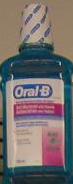
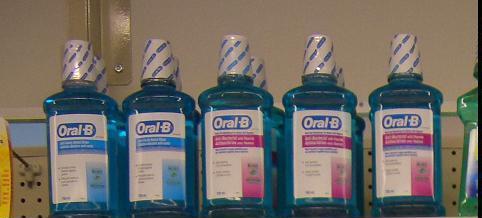 Figure 1. Key image for 1:1 Matching.
The location of the key image is:
C:\IFSeg10\ ex_object1\key.jpg.
We will do a 1:1 Matching against the image,
C:\IFSeg10\ ex_object1\CIMG4643_mid_shelf1.JPG.
Figure 1. Key image for 1:1 Matching.
The location of the key image is:
C:\IFSeg10\ ex_object1\key.jpg.
We will do a 1:1 Matching against the image,
C:\IFSeg10\ ex_object1\CIMG4643_mid_shelf1.JPG.
 Figure 2. Step 1, selecting a key. After selecting a key image, the image will be displayed in the Key Panel.
The example will take three clicks:
1. Click the �1� button in the Toolbar, and select
"C:\IFSeg10\ ex_object1\key.jpg" (see Figure 2).
You can also drag & drop "C:\IFSeg10\ ex_object1\key.jpg" to the first text box.
Figure 2. Step 1, selecting a key. After selecting a key image, the image will be displayed in the Key Panel.
The example will take three clicks:
1. Click the �1� button in the Toolbar, and select
"C:\IFSeg10\ ex_object1\key.jpg" (see Figure 2).
You can also drag & drop "C:\IFSeg10\ ex_object1\key.jpg" to the first text box.
 Figure 3. Step 2, selecting a folder. After selecting a folder, the first image will be displayed in the Folder Panel (middle picture box). The list of image files will be displayed in the text window. The �F� button goes to the first image; the �>� button goes to the next image; and the �<� goes to the previous image. All sub-folders will be included.
2. Click the �2� button in the Toolbar and select the folder,
"C:\IFSeg10\ ex_object1\".
You can also drag & drop the folder, "C:\IFSeg10\ ex_object1\", to the second text box; see Figure 3.
Figure 3. Step 2, selecting a folder. After selecting a folder, the first image will be displayed in the Folder Panel (middle picture box). The list of image files will be displayed in the text window. The �F� button goes to the first image; the �>� button goes to the next image; and the �<� goes to the previous image. All sub-folders will be included.
2. Click the �2� button in the Toolbar and select the folder,
"C:\IFSeg10\ ex_object1\".
You can also drag & drop the folder, "C:\IFSeg10\ ex_object1\", to the second text box; see Figure 3.
 Figure 4. Search the 30 x 5 grid of sub-images, or 150 sub-images.
3. Before we make a search, you will specify how to search via a �N by M� grid, i.e. how many sub-images we will look at for the specified key image. The default value is a 10 by 10 grid. Enter 30 and 5 in Figure 4.
Figure 4. Search the 30 x 5 grid of sub-images, or 150 sub-images.
3. Before we make a search, you will specify how to search via a �N by M� grid, i.e. how many sub-images we will look at for the specified key image. The default value is a 10 by 10 grid. Enter 30 and 5 in Figure 4.
 Figure 5. Search the selected folder. Images that matched the �key� will be displayed in the Results Panel. Use the F, >, and < buttons to see the matched images. The �F� button goes to the first image; the �>� button goes to the next image; and the �<� goes to the previous image.
Click the �Search/1:1 Matching (N x M)� menu item in Figure 5.
Figure 5. Search the selected folder. Images that matched the �key� will be displayed in the Results Panel. Use the F, >, and < buttons to see the matched images. The �F� button goes to the first image; the �>� button goes to the next image; and the �<� goes to the previous image.
Click the �Search/1:1 Matching (N x M)� menu item in Figure 5.
 Figure 6. The key image and the matched images are displayed side-by-side.
To see the first matched image, click the �F� button in the Results Panel (see Figure 5). To see the next matched image, click the �>� button in the Results Panel. The key and the matched images are displayed side-by-side.
Figure 6. The key image and the matched images are displayed side-by-side.
To see the first matched image, click the �F� button in the Results Panel (see Figure 5). To see the next matched image, click the �>� button in the Results Panel. The key and the matched images are displayed side-by-side.
Attrasoft ImageFinderSeg searches for an image segment from a folder in three clicks. ImageFinderSeg User's Guide ImageFinderSeg Download Return |

Home | Company | Services | Products | Customers | Contact Us copyright 2007 - 2015 Attrasoft, Inc. All Rights Reserved. |